

Data Recovery: Save Your Files Before It’s Too Late
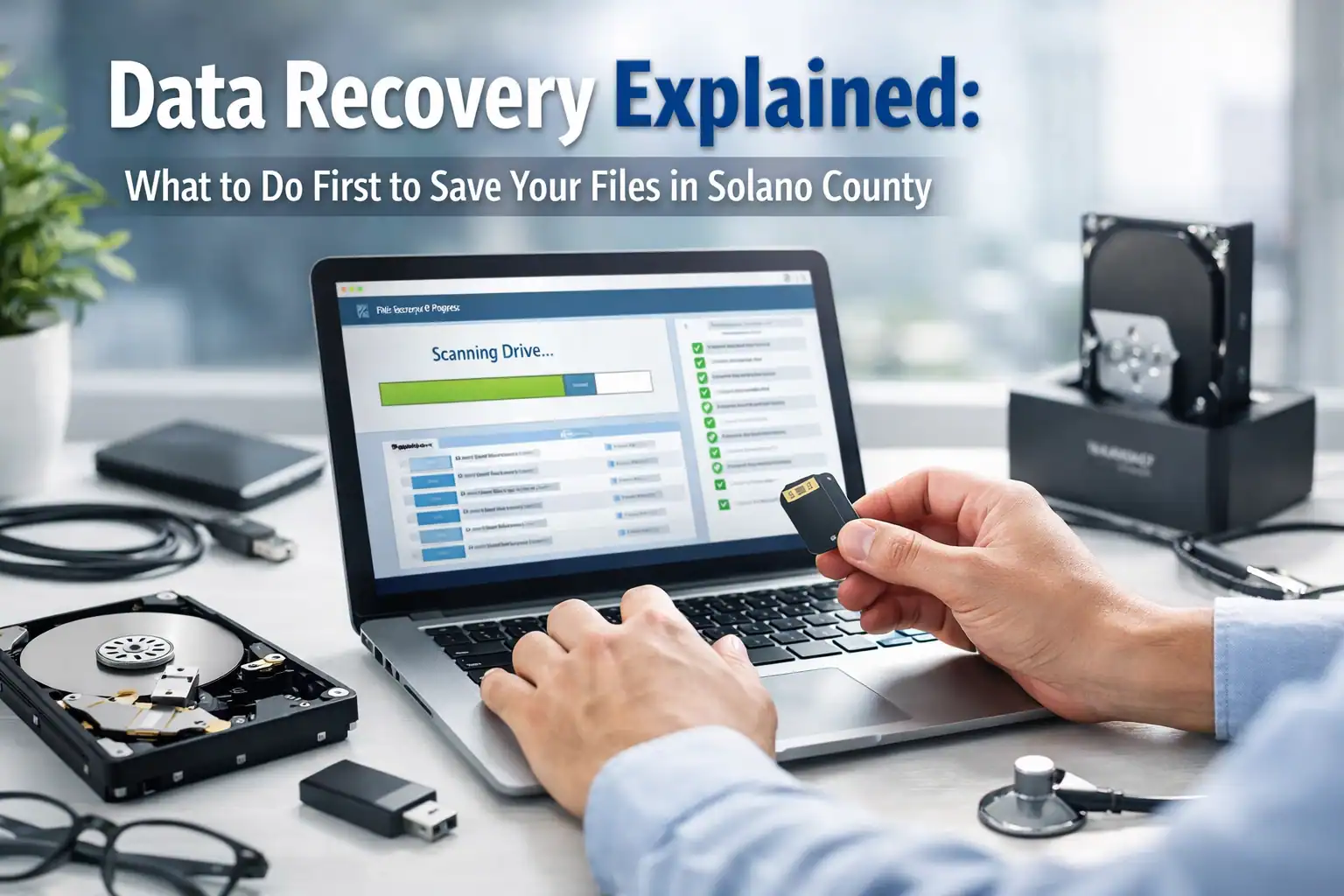
Your Drive Just Failed — Here’s What to Do Right Now
A black screen, a “Boot Device Not Found” error, or a sickening click-click-click from your hard drive — any of these can mean your files are at risk. The steps you take in the next five minutes will determine whether your data is recoverable or gone for good.
At ART Computer Maintenance and Repair, we’ve handled hundreds of data recovery cases across Solano County since 2008. Here’s exactly what you need to know.
Step One: Stop Using the Device Immediately
This is the single most important thing you can do. Power down your computer right now.
When files are deleted or a file system becomes corrupted, the data isn’t actually erased — it’s just marked as “available” to be overwritten. Every second your computer stays on, the operating system writes temporary files in the background. Those temp files can land directly on top of your lost data, destroying it permanently.
Key takeaway: Once a file is overwritten, no tool or technician can bring it back. Shutting down freezes everything in place and gives a professional the best chance at recovery.
HDDs vs. SSDs: Why It Matters for Recovery
Traditional Hard Disk Drives (HDDs)
HDDs use spinning platters and a tiny read/write head — similar to a high-tech record player. When they fail, it’s usually mechanical: a seized motor, a head crash, or degraded platters. That clicking or grinding sound means a physical component is failing, and every second it runs risks scratching data off the disk.
Solid State Drives (SSDs)
SSDs have no moving parts and store data on flash memory chips. They’re faster and more drop-resistant, but significantly harder to recover when they fail electrically.
One major challenge is TRIM — a feature that proactively wipes deleted file cells to maintain drive speed. This makes accidental deletion recovery on SSDs a race against the clock. Backblaze’s drive reliability research provides useful context on how different drive types fail over time.
How Professional Data Recovery Actually Works
We don’t just plug in your drive and hope. Our process is methodical and designed to protect your data at every stage.
1. Diagnostic Assessment
We determine whether you’re dealing with a logical failure (the drive works, but files are scrambled) or a physical failure (broken hardware).
2. Byte-to-Byte Imaging
We never work on your original drive. Instead, we create a perfect clone — a complete byte-level copy. Your original hardware goes into safe storage while all recovery work happens on the copy.
3. Data Extraction and Reconstruction
Using forensic-grade tools, we reconstruct folder structures and recover files — often restoring them exactly where you left them.
4. Verification and Transfer
We verify recovered files actually open and aren’t corrupted, then transfer everything to a healthy external drive or your new computer.
Why DIY Recovery Software Is Risky
Searching for “free data recovery” is tempting, but it’s often where a recoverable situation becomes permanent loss:
- Installation overwrites data — most tools require installing on the failing drive, which can destroy the very files you’re trying to save
- Deep scans stress failing hardware — a six-hour scan on a mechanically damaged drive can burn it out completely
- No safeguards — DIY tools skip the byte-level imaging step, meaning there’s no safety net
If the data matters — business records, family photos, years of work — skip the DIY gamble and contact a professional.
Prevent the Next Data Crisis: The 3-2-1 Rule
Data recovery works, but prevention is cheaper and less stressful. Every Vacaville home and business should follow the 3-2-1 Backup Rule, recommended by the Cybersecurity and Infrastructure Security Agency (CISA):
- 3 copies of your data
- 2 different types of media (e.g., your computer + an external drive)
- 1 copy stored off-site or in the cloud
Keeping your hardware in good shape also helps prevent drive failures. See our 7 laptop mistakes that lead to costly repairs to avoid the habits that kill drives early.
Get Your Files Back — Contact ART Computer Today
If you’re staring at a blank screen or hearing a clicking drive right now, remember: power it down, leave it off, and get it to an expert.
Whether you’re in Vacaville, Dixon, or Fairfield, ART Computer Maintenance and Repair is ready to help. Book your diagnostic today or stop by our shop — we’ll give you a straight answer, a clear plan, and the best chance at seeing your files again.
Need Help With Your Tech?
Our team is ready to help — on-site, same-day service across Solano County.


