

7 Laptop Mistakes That Lead to Costly Repairs
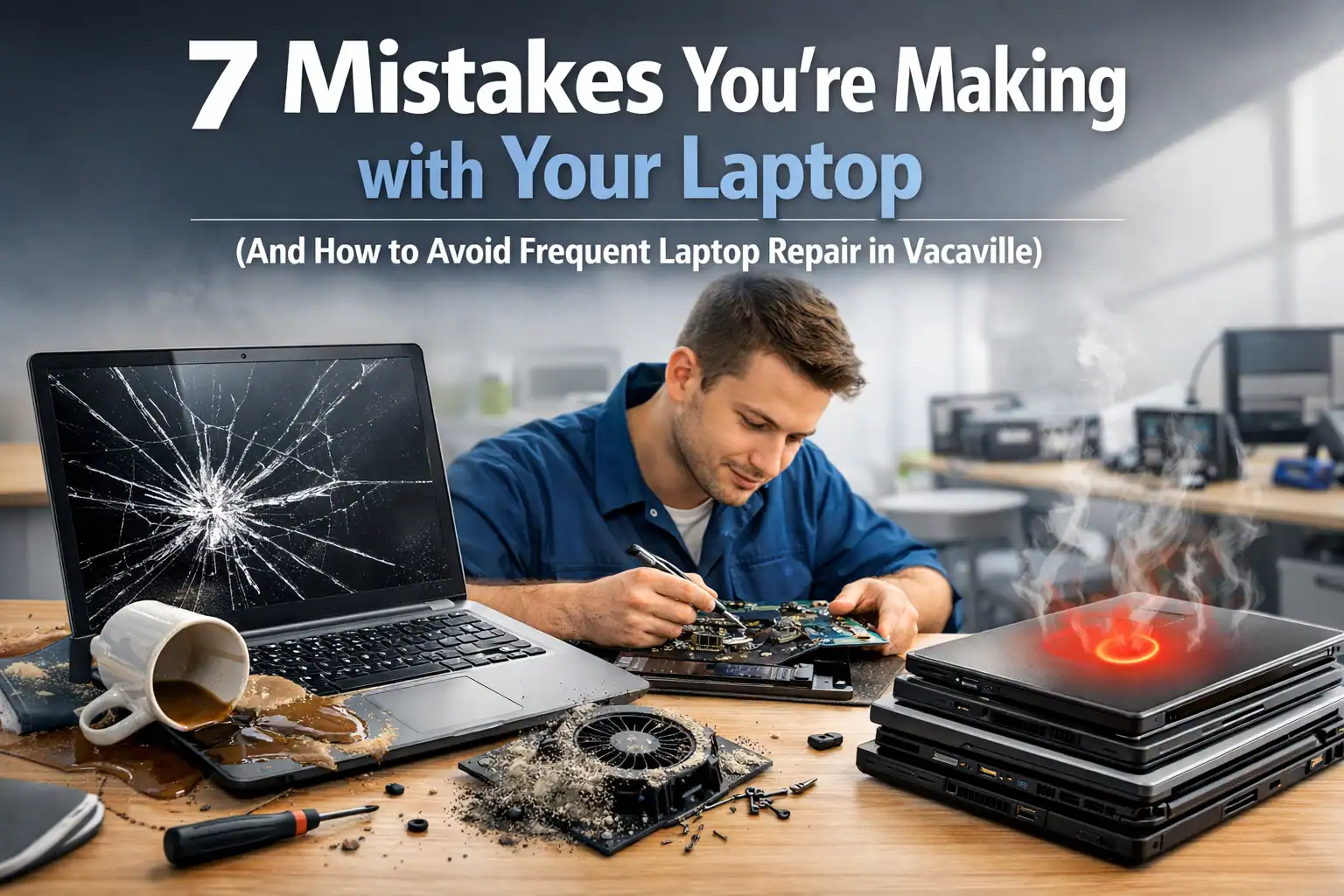
Most laptop failures we see at our Vacaville shop aren’t caused by age or bad luck. They’re caused by everyday habits that slowly — or suddenly — destroy your machine. Here are the seven worst offenders and how to break the cycle.
1. Closing the Lid with Objects on the Keyboard
This is the number-one cause of cracked screens in Solano County. A paperclip, pen, or stray cable on the keyboard turns the hinge into a lever that multiplies force directly into your display.
The fix: Sweep the keyboard with your hand before closing the lid. Every single time. Don’t let a 10-cent paperclip cause a $400 screen replacement.
2. Using Your Laptop on Soft Surfaces
Blankets, pillows, and laps block the air vents on the bottom of your laptop. Without airflow, internal temperatures spike — and sustained heat can melt solder or swell batteries.
The fix: Always use a hard, flat surface. If you work from the couch, grab a $15 laptop tray or cooling pad. If your laptop already sounds like a jet engine, the repair team at ART Computer can check whether your thermal paste needs replacing.
3. Never Cleaning the Fans
Your laptop’s cooling fans act like tiny vacuum cleaners, pulling in dust, pet hair, and debris. After a year or two, a thick layer of buildup insulates the heat sink and makes cooling impossible.
The fix: Every few months, give the vents a blast with compressed air (laptop off). If you’ve never done this and your fans are screaming, a professional internal cleaning will restore proper airflow.
4. Skipping Software Updates
Clicking “Remind me later” feels harmless, but updates contain critical security patches and driver improvements. Skipping them is like leaving your front door unlocked.
The CISA recommends applying updates promptly as one of the most important steps in protecting your devices.
The fix: Set updates to install automatically during off-hours. Keep a backup so you’re covered in the rare case an update causes issues.
5. Carrying Your Laptop by the Screen
The hinges support the screen’s weight, not the entire base. Lifting by the display puts massive torque on the frame and the delicate video cables running through the hinge.
The fix: Always pick it up from the base with two hands. If your hinges already feel loose or your screen flickers when you adjust the angle, it may be time for a hardware repair.
6. Using Cheap, Third-Party Chargers
That $12 replacement charger from an unknown brand often lacks proper voltage regulation and safety circuitry. A bad charger can send a power surge straight to your motherboard — or cause the battery to overheat.
The fix: Stick with OEM chargers or certified brands (Anker, Belkin, etc.). Saving $60 on a charger isn’t worth bricking a $1,000 laptop.
7. Ignoring Warning Signs
Your laptop tells you when something is wrong. Don’t ignore it:
- Grinding or rattling — A fan is failing
- Clicking sounds — A mechanical hard drive is dying (see our data recovery guide for what to do)
- Sudden, persistent slowness — Could be a failing component or a virus
A $50 fix today can prevent a $500 repair — or total data loss — next month.
Already Guilty of a Few of These?
Don’t worry — the best time to change your habits is now. Start using a hard surface, buy that compressed air, and stop carrying it by the screen.
If your laptop is already showing symptoms, bring it in before a small problem becomes an expensive one. At ART Computer Maintenance and Repair, we handle everything from screen replacements to motherboard diagnostics to virus removal.
Need a pro to take a look? Book an appointment and let’s keep your laptop healthy for years to come.
Need Help With Your Tech?
Our team is ready to help — on-site, same-day service across Solano County.


